
Microsoft Teams backgrounds
Teams background with logo, made from your website
To use a Teams background with your logo, add a 1920×1080 image that contains the logo in Microsoft Teams under Effects and avatars → Backgrounds → Add new, then select it. MeetingBrand makes that image from your company website — your logo mounted as a real sign in one of 22 office rooms — and, for a whole company, places it in each employee's Teams background gallery through the MeetingBrand Agent.
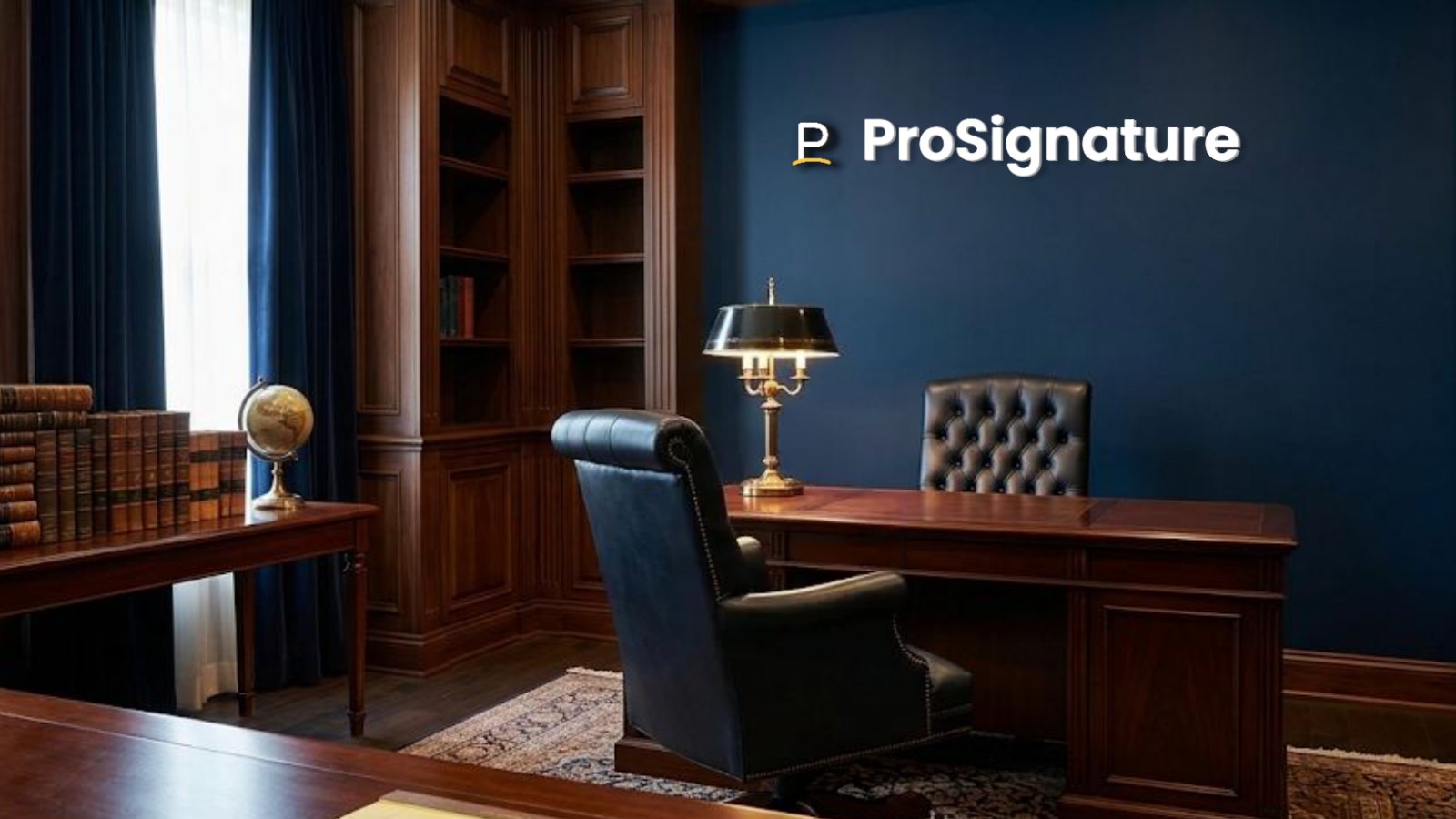
MeetingBrand creates branded Microsoft Teams, Google Meet and Zoom backgrounds from a company's website: it fetches the logo and brand colors, mounts the logo as a physical sign in one of 22 realistic office rooms and exports each background as a 1920×1080 PNG. Delivery is built in for Microsoft Teams via the MeetingBrand Agent, Google Meet via the MeetingBrand Chrome extension; Zoom and directory sync are coming. It is free during early access.
What makes a good branded Teams background
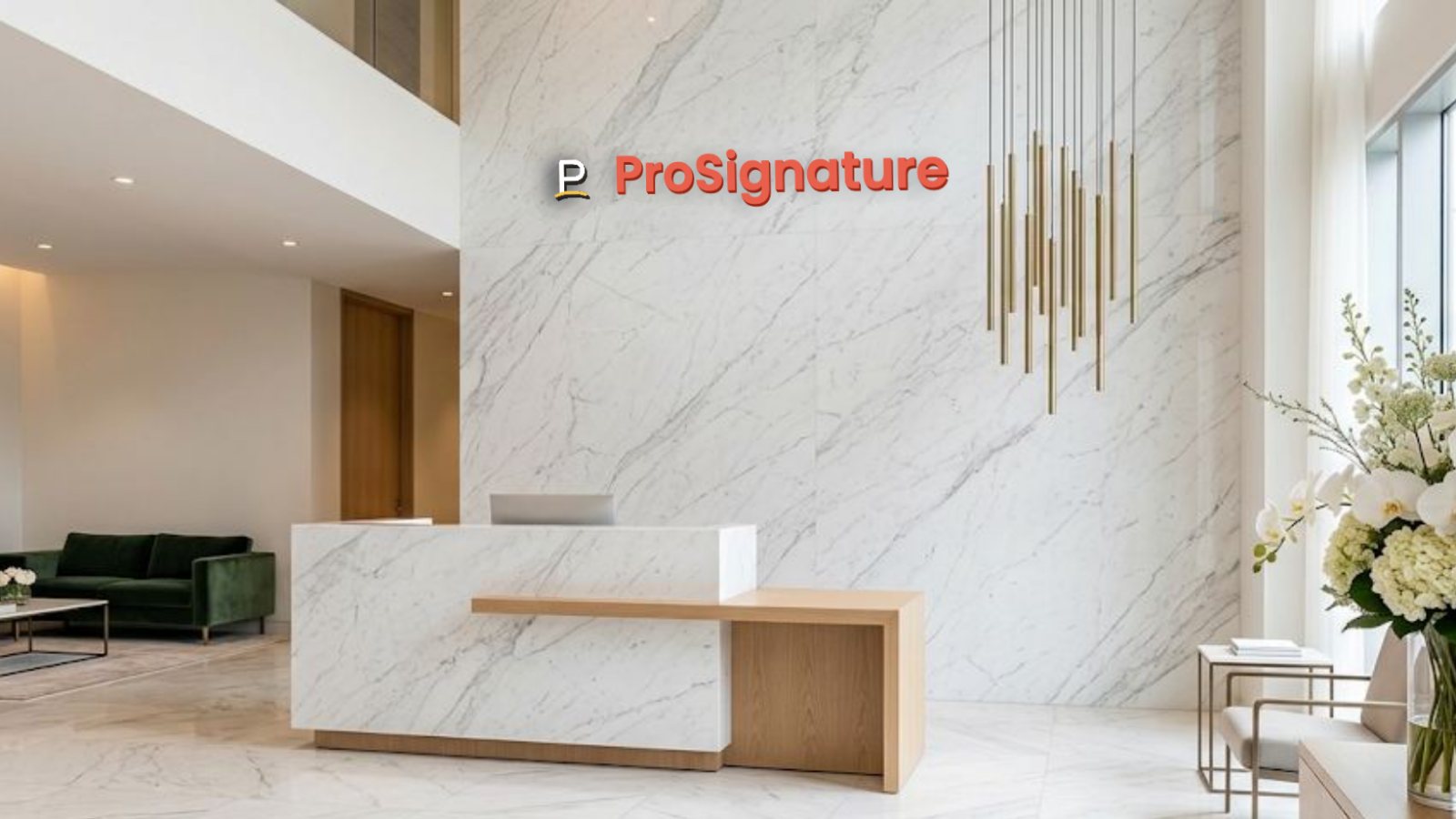
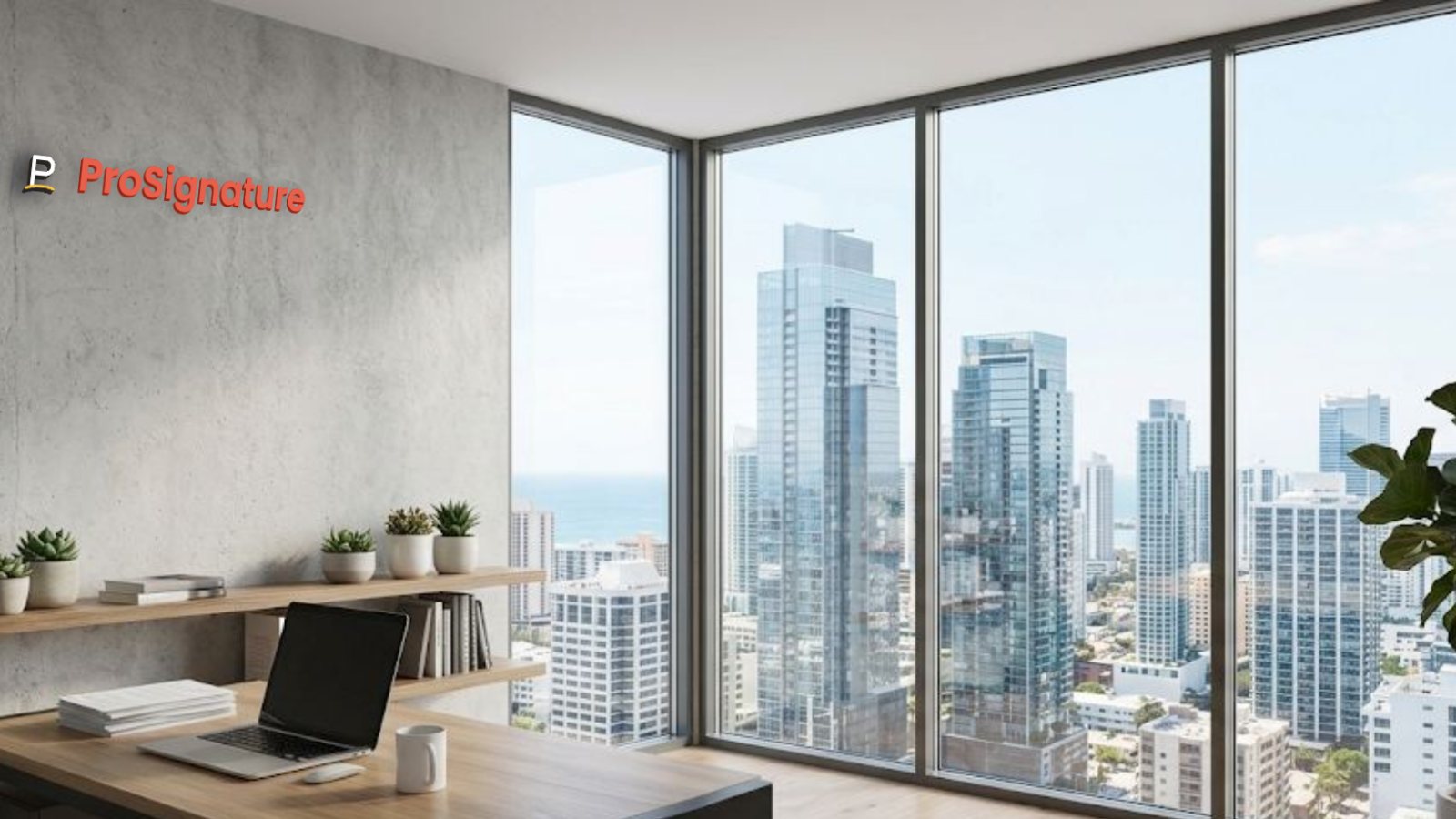
A branded Teams background works when the logo looks like it belongs in the room. A logo pasted over a flat color reads as wallpaper; a logo mounted on a wall — brass letters on walnut, a backlit plate on concrete — reads as an office. MeetingBrand renders the logo as a physical sign in the scene, in your brand colors, so the background looks credible on camera.
Keep the logo in the upper part of the frame, where your head and shoulders do not cover it, and use a 16:9 image: MeetingBrand exports every background at 1920×1080. Teams shows your own preview mirrored, so the logo can look reversed to you; the people in the meeting see it the right way round.
A custom Teams background for one person, or for the whole company
One person can upload their own image in Teams under Backgrounds → Add new, unless their admin has turned custom images off. That is enough for a single user.
For a company, every employee needs the same approved image. Tenants with Teams Premium can upload organization backgrounds in the Teams admin center and require them. Without Teams Premium, the MeetingBrand Agent — installed once by IT with the Intune or Jamf script generated in the app — places the approved background in each person's Teams background gallery on Windows and Mac; each person picks it once and Teams keeps it.
How to make it — step by step
- Create your brand. Open meetingbrand.com/app/ and sign up with your work email. MeetingBrand fetches your company's public logo and brand colors from that domain and renders 3 starter backgrounds (Concrete corner loft, Brick creative loft, Navy executive study). With a personal email, type your website instead, or upload a logo.
- Pick the room and the sign. Choose from 22 office rooms and 14 sign treatments — brass, oak, backlit, LED, glass and more — and turn on the optional name bar with each person's name, title, department and company.
- Download or deliver it. Download the 1920×1080 PNG, or add your people by CSV (name, email, title, department) and let IT install the MeetingBrand Agent with the Intune or Jamf script generated in My team.
- Select it in Teams. In Teams, open Effects and avatars → Backgrounds. With the Agent installed, the branded background is already in the gallery after Teams restarts; otherwise choose Add new and pick the PNG. Select it once and Teams keeps it.
What MeetingBrand does on Microsoft Teams today
No meeting platform lets a third party switch a person's active background by API, so here is exactly what happens, verified October 10, 2026 against product build v96.
Microsoft Teams
Status, October 10, 2026: Live. The MeetingBrand Agent for Windows and macOS places the company's background in each person's Teams background gallery; IT installs it once with the Intune or Jamf script generated in the app, and people added by CSV are matched by e-mail. The employee picks the background once and Teams keeps it. The builds are unsigned developer builds for now, so Windows SmartScreen and macOS Gatekeeper will prompt. Directory sync from Microsoft 365 is coming.
Facts
| Input | Your company website. Sign up with a work email and MeetingBrand fetches the public logo and brand colors from that domain; you can also upload a logo. |
|---|---|
| Rooms | 22 built-in office rooms: City open space, Walnut executive wall, Tel Aviv sunset window, Stone & slats lounge, Tel Aviv beach window, Concrete gallery night, Manhattan skyline window, Forest window, Concrete corner loft, Brick creative loft, Navy executive study, Marble reception, Glass office corridor, Travertine lounge, Concrete open office, Oak skyline office, Charcoal wall oak office, Arched-window loft lounge, Sunset tower office, Alpine lake executive office, Farmhouse meadow studio, Stone farmhouse study. |
| Sign treatments | 14: Wall sign, Wall sticker, Silver letters, Brass letters, Oak letters, Washed wood, Black letters, Illuminated, Glass signage, Metal plaque, Backlit plate, 3D acrylic, LED signage, Wallpaper. |
| Name bar | Optional, per employee: name, title, department and company, on the downloaded background. The backgrounds the Agent and the extension deliver are the company look without a personal name bar. |
| Output | 1920×1080 PNG download per background, for any meeting app that accepts custom backgrounds. |
| Microsoft Teams | Live. The MeetingBrand Agent for Windows and macOS places the company's background in each person's Teams background gallery; IT installs it once with the Intune or Jamf script generated in the app, and people added by CSV are matched by e-mail. The employee picks the background once and Teams keeps it. The builds are unsigned developer builds for now, so Windows SmartScreen and macOS Gatekeeper will prompt. Directory sync from Microsoft 365 is coming. |
| Price | Free during early access. |
Questions
How do I add a background with my company logo in Microsoft Teams?
Before or during a meeting, open Effects and avatars → Backgrounds, choose Add new and pick a 1920×1080 image that contains your logo, then select it. MeetingBrand creates that image from your company website; with the MeetingBrand Agent installed, the background is already in the Teams gallery and the person only selects it once.
Can IT give the whole company the same branded Teams background?
Yes. Tenants with Teams Premium can upload organization backgrounds in the Teams admin center and require them. Any tenant can use the MeetingBrand Agent: IT installs it once with the Intune or Jamf script generated in MeetingBrand, it places the approved background in each person's Teams gallery, and each person picks it once. The Agent builds are unsigned developer builds for now, so Windows SmartScreen and macOS Gatekeeper will prompt.
Do I need Teams Premium for a custom Teams background?
Not for your own background: anyone can upload an image in Teams under Backgrounds → Add new unless their admin has turned custom images off. Teams Premium adds admin-managed organization backgrounds. MeetingBrand's Agent delivers a company background without Teams Premium; the employee picks it once.
What size should a Teams background with a logo be?
Use a 16:9 image. MeetingBrand exports every background as a 1920×1080 PNG and keeps the logo in the upper part of the frame, where your head does not cover it.
Is MeetingBrand free?
Yes. MeetingBrand is free during early access.
Make yours now
Open the generator, sign up with your work email and your logo is on the wall in a minute. Free during early access.
Related: Zoom background with logo · Google Meet background with logo · Virtual background generator · Branded backgrounds for small businesses
Facts verified October 10, 2026 against product build v96. Written and maintained by the MeetingBrand team; this block changes only when a fact changes.