
Teams background deployment
Deploy Teams backgrounds with Intune
Microsoft Teams has no API for meeting backgrounds, so deploying a branded Teams background to every employee means putting the image on each device. MeetingBrand does that with the MeetingBrand Agent: IT deploys it once with the Intune (Windows) or Jamf (macOS) script generated in the app, and the Agent places the approved background in each person's Teams background gallery, where they select it once.
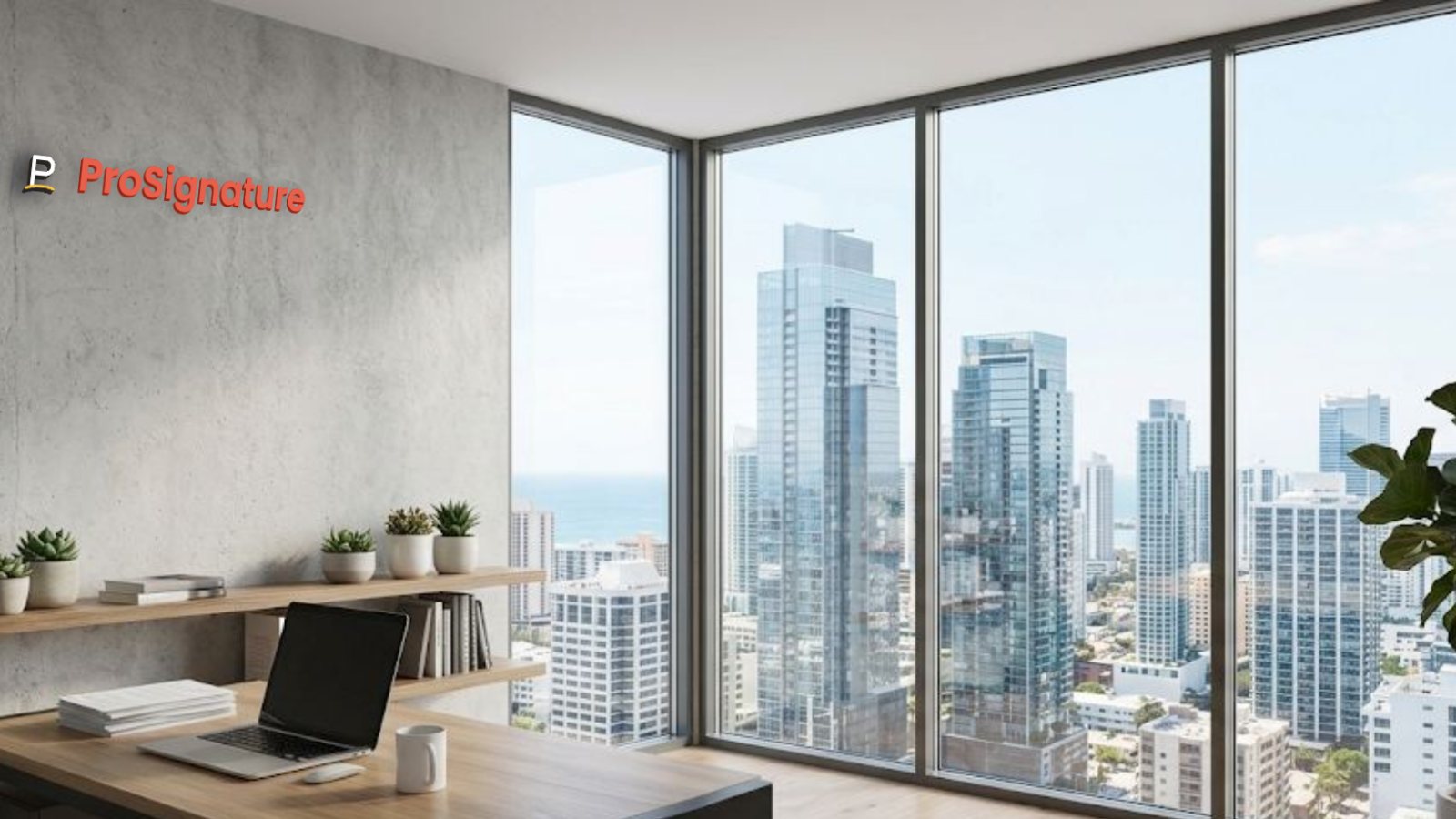
MeetingBrand creates branded Microsoft Teams, Google Meet and Zoom backgrounds from a company's website: it fetches the logo and brand colors, mounts the logo as a physical sign in one of 22 realistic office rooms and exports each background as a 1920×1080 PNG. Delivery is built in for Microsoft Teams via the MeetingBrand Agent, Google Meet via the MeetingBrand Chrome extension; Zoom and directory sync are coming. It is free during early access.
Why Teams backgrounds are deployed to the device
Microsoft Teams has no API for meeting backgrounds. Outside Teams Premium, which lets an admin upload organization backgrounds in the Teams admin center, a custom image reaches Teams only from the person's own device.
That is why a do-it-yourself rollout usually ends in a script that copies image files to every laptop and has to be rewritten whenever the brand changes. The MeetingBrand Agent replaces that script: it brings the backgrounds you approve in MeetingBrand to each device, and later changes arrive without another deployment.
What the Intune or Jamf script does
The script is generated in My team and carries your organization's enrollment key. It installs the MeetingBrand Agent, a small helper for Windows and macOS; the Agent can also be installed by hand with the same key.
The Agent matches each device to a person by the signed-in e-mail, so people you added by CSV (name, email, title, department) are covered. After Teams restarts, the branded image appears under Effects and avatars → Backgrounds. My team shows each person's status: delivered, waiting for a restart, needs the employee's one click, or blocked (with the reason).
Before you roll it out
The Agent builds are unsigned developer builds for now, so Windows SmartScreen and macOS Gatekeeper will prompt — pilot with a small group first.
The Agent does not switch anyone's active background: no meeting platform lets a third party do that by API. Each employee selects the branded background once and Teams keeps it.
To remove it, uninstall the Agent from Add/Remove programs (Windows) or the Applications folder (macOS), and revoke the device in My team.
How to make it — step by step
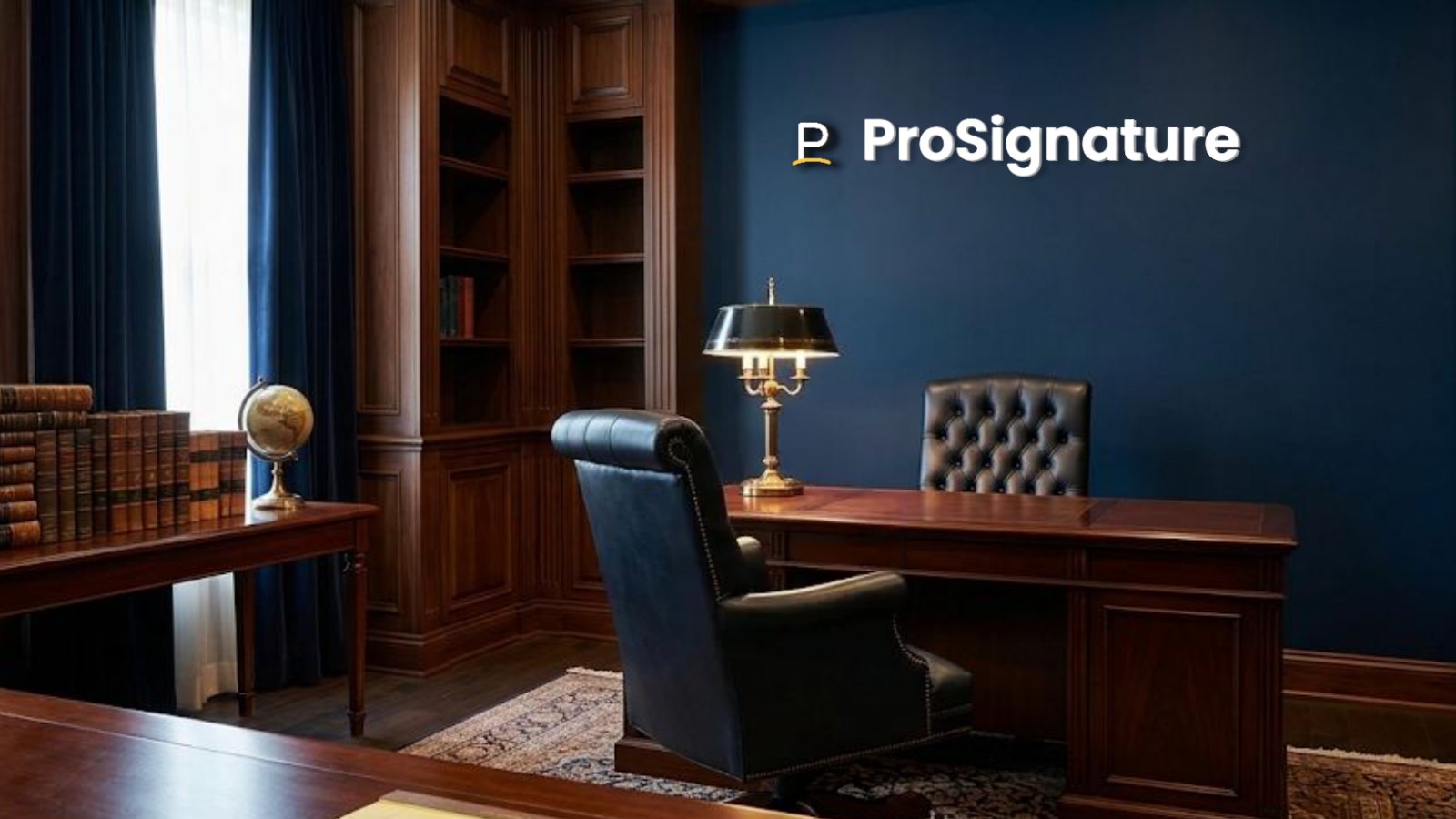
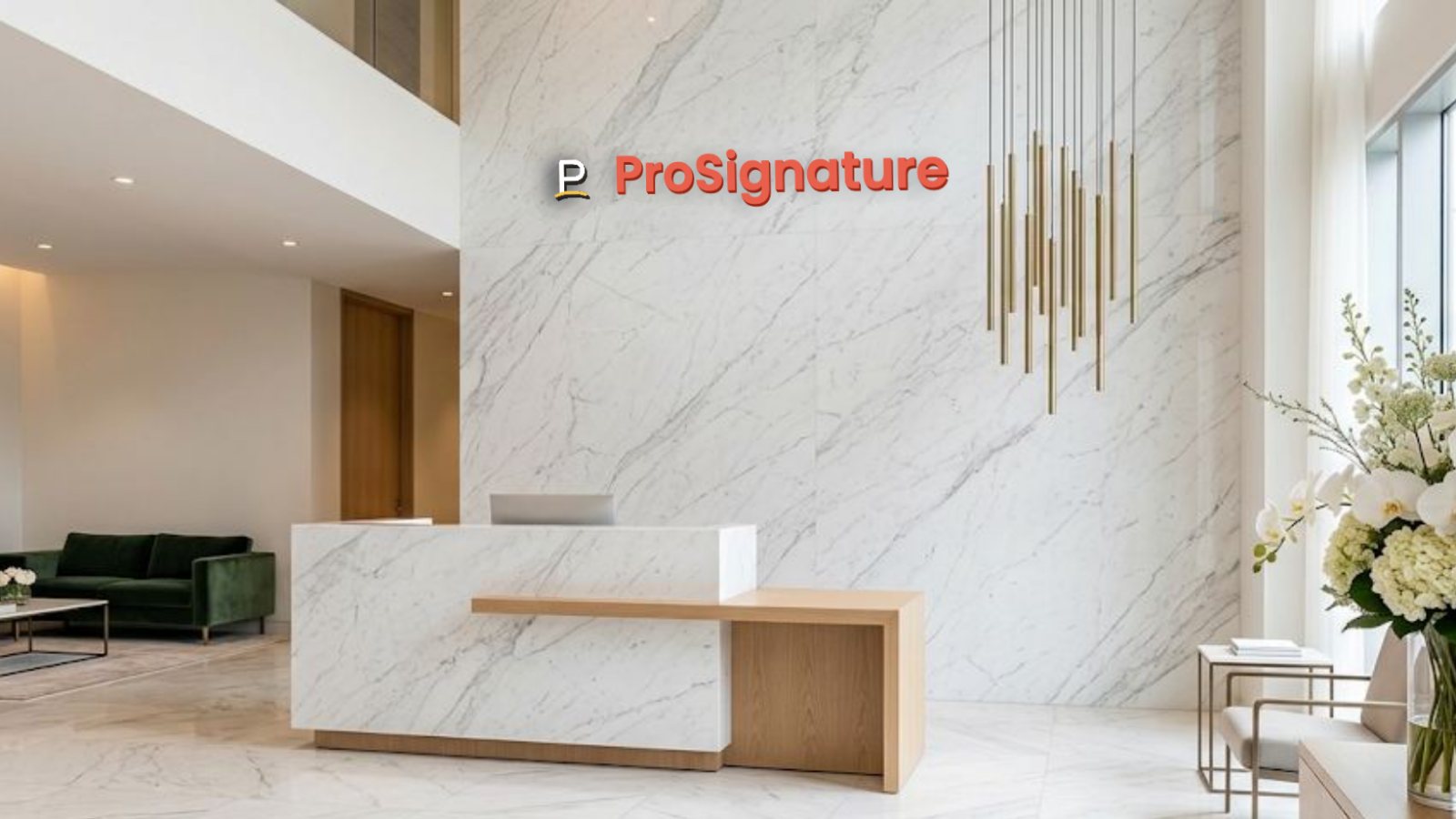
- Create your brand. Open meetingbrand.com/app/ and sign up with your work email. MeetingBrand fetches your company's public logo and brand colors from that domain and renders 3 starter backgrounds (Concrete corner loft, Brick creative loft, Navy executive study). With a personal email, type your website instead, or upload a logo.
- Pick the room and the sign. Choose from 22 office rooms and 14 sign treatments — brass, oak, backlit, LED, glass and more — and turn on the optional name bar with each person's name, title, department and company.
- Add your people. My team → Upload users → upload a CSV with name, email, title and department.
- Generate and deploy the script. In My team, generate the Intune (Windows) or Jamf (macOS) script and deploy it to your devices once. It installs the MeetingBrand Agent with your organization's enrollment key.
- Employees select it once. After Teams restarts, each person opens Effects and avatars → Backgrounds and selects the branded background; Teams keeps it.
What MeetingBrand does on Microsoft Teams today
No meeting platform lets a third party switch a person's active background by API, so here is exactly what happens, verified October 18, 2026 against product build v97.
Microsoft Teams
Status, October 18, 2026: Live. The MeetingBrand Agent for Windows and macOS places the company's background in each person's Teams background gallery; IT installs it once with the Intune or Jamf script generated in the app, and people added by CSV are matched by e-mail. The employee picks the background once and Teams keeps it. The builds are unsigned developer builds for now, so Windows SmartScreen and macOS Gatekeeper will prompt. Directory sync from Microsoft 365 is coming.
Facts
| Microsoft Teams | Live. The MeetingBrand Agent for Windows and macOS places the company's background in each person's Teams background gallery; IT installs it once with the Intune or Jamf script generated in the app, and people added by CSV are matched by e-mail. The employee picks the background once and Teams keeps it. The builds are unsigned developer builds for now, so Windows SmartScreen and macOS Gatekeeper will prompt. Directory sync from Microsoft 365 is coming. |
|---|---|
| People | Add people by CSV (name, email, title, department) from My team → Upload users. Directory sync from Microsoft 365 (Entra ID), Google Workspace and Zoom is coming. |
| Output | 1920×1080 PNG download per background, for any meeting app that accepts custom backgrounds. |
| Data | Application data is stored with Supabase in Frankfurt (EU) with row-level access controls; this website is hosted on GitHub Pages. MeetingBrand never reads meeting audio, video, chat or calendars. |
| Price | Free during early access. |
Questions
Can I deploy Teams backgrounds with Intune?
Yes. MeetingBrand generates an Intune script for Windows and a Jamf script for macOS in My team. It installs the MeetingBrand Agent, which places the company's approved background in each person's Teams background gallery; each person selects it once and Teams keeps it.
Do I need Teams Premium to deploy a company Teams background?
No. Teams Premium lets an admin upload organization backgrounds in the Teams admin center; without it, the MeetingBrand Agent delivers the background to each device.
What happens when we change the background?
Approve the new background in MeetingBrand; the Agent brings the change to each device without another deployment.
Will Windows or macOS warn about the Agent?
Yes, for now: the Agent builds are unsigned developer builds, so Windows SmartScreen and macOS Gatekeeper will prompt.
How do we remove it?
Uninstall the Agent from Add/Remove programs (Windows) or the Applications folder (macOS), and revoke the device in My team.
Make yours now
Open the generator, sign up with your work email and your logo is on the wall in a minute. Free during early access.
Related: Teams background with logo · Zoom background with logo · Google Meet background with logo · Virtual background generator · Teams custom background without Premium · Zoom background with name and title · Branded virtual background · Branded backgrounds for small businesses
Facts verified October 18, 2026 against product build v97. Written and maintained by the MeetingBrand team; this block changes only when a fact changes.